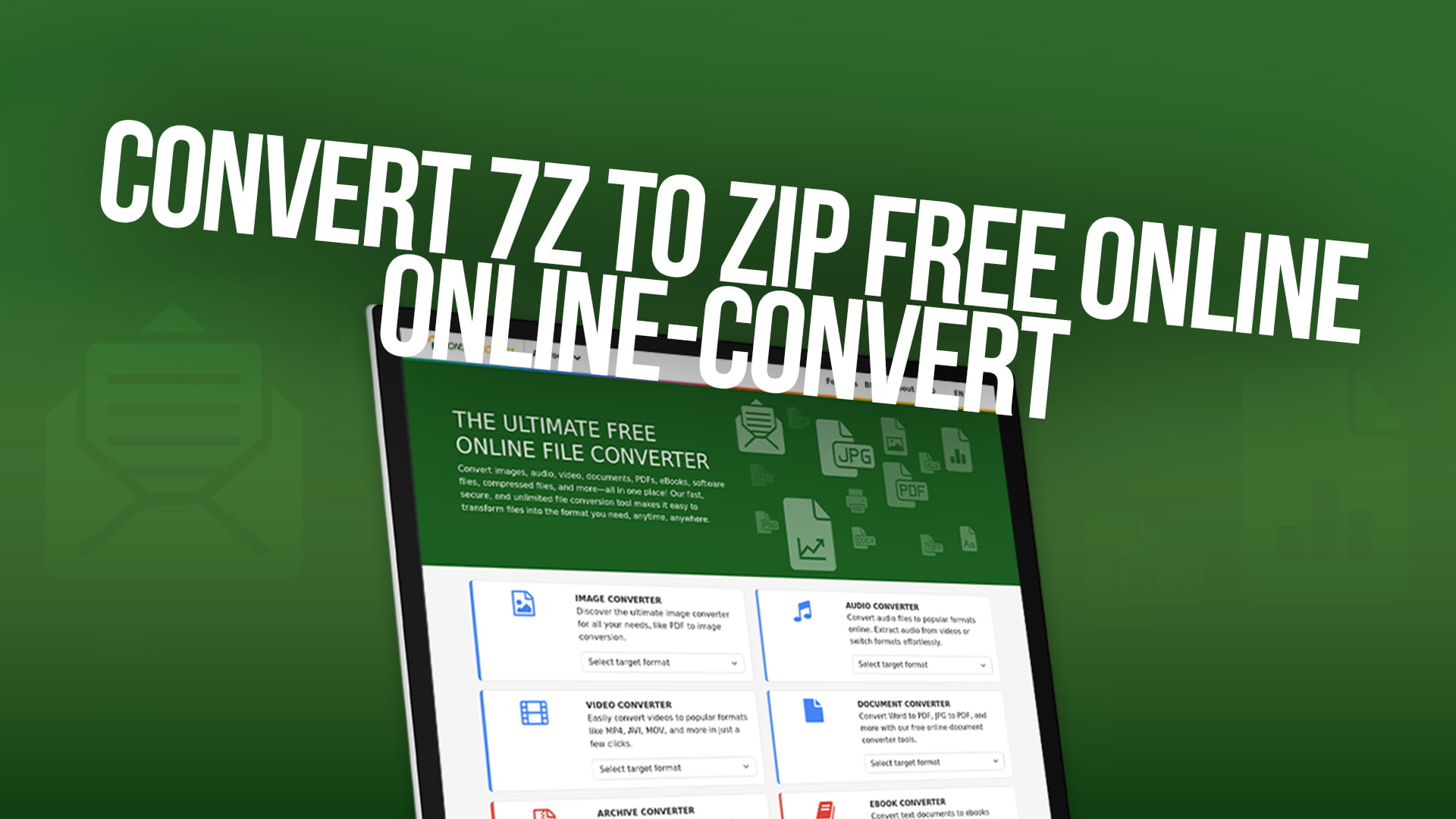
Convert 7Z to ZIP Free Online | Online-Convert
You downloaded a file. It ends in .7z. You double-click it, and nothing happens — or worse, your computer asks you which program you want to use to open it and you have no idea what to pick. It's a frustrating moment, and it happens to people more often than you'd expect.
The fix is simple. You convert the 7Z file into a ZIP file. ZIP is a format that every device and operating system already understands. Once you have the ZIP, everything opens normally. No new software, no confusion.
Online-Convert gives you a free way to do this entirely in your browser. You upload the 7Z file, choose ZIP as the output, and download the result. That's the whole process. This guide walks through everything you'd want to know — what these formats are, why the switch matters, how the conversion works, and how to do it in a few steps.
What Is a 7Z File
A 7Z file is a compressed archive. The idea behind it is simple: you take one file or a whole folder of files, squeeze them down to a smaller size, and wrap everything into a single package. That package gets the .7z extension. The format was developed by Igor Pavlov, the same person who created the compression program 7-Zip, and it's been around since the late 1990s.
7Z is genuinely good at what it does. It can compress files down to sizes that older formats struggle to match. If you have a large folder of similar files — text documents, code files, or images of the same type — 7Z compression can reduce the total size quite significantly. It also supports strong encryption, which means you can lock the archive with a password and be confident that the contents are protected.
The format also supports solid compression, which is a technique where multiple files are compressed together rather than individually. This leads to even smaller archive sizes when the files share similar content.
So why doesn't everyone use 7Z? The problem is that it isn't built into most operating systems. Windows can open ZIP files without any extra software. So can macOS, iOS, and Android. None of them handle 7Z natively. You need a third-party application like 7-Zip on Windows or The Unarchiver on macOS before you can open a .7z file. On a phone, you'd need to find a compatible app from the app store.
That extra step is manageable if you're on your own computer and have time to set things up. It becomes a real problem when you need to open a file on a work device where software installation isn't allowed, when you're on someone else's computer, or when you need to share a file with someone who isn't technically inclined.
What Is a ZIP File
ZIP is the archive format that everyone already has. It's been supported natively by Windows since the early 2000s and by macOS for just as long. Every version of Android and iOS can open ZIP files without installing anything. If you create a ZIP file today, any person you send it to can open it by just double-clicking, regardless of what device or operating system they use.
The format was developed in 1989 by Phil Katz and has been a standard in computing ever since. That kind of longevity means one thing above everything else: compatibility. There isn't a modern device or operating system that doesn't understand ZIP files.
ZIP uses compression too, typically a method called DEFLATE. It doesn't always squeeze files as small as 7Z does, but it gets the job done and the speed difference is barely noticeable for everyday files. More importantly, the file you create works everywhere, immediately, without requiring the recipient to install anything.
ZIP also integrates cleanly with email. Many email services are suspicious of certain file types in attachments. The .7z extension can trigger filters or warnings on some platforms. ZIP rarely causes those problems because it's so widely recognized as a normal, everyday format.
For most practical purposes — sharing files with other people, uploading to a website, attaching to an email, or just organizing your own files — ZIP is the right choice.
Why Converting From 7Z to ZIP Makes Sense
The core reason is straightforward: you want the file to open without complications. But there are several specific situations where converting becomes necessary.
Someone sends you a 7Z file and you can't open it. You're on a computer without 7-Zip installed. Maybe it's a work device and you can't add new software. Maybe you're using a Mac and haven't set up an extraction app. Converting the file online is faster than finding, downloading, and installing a new program just to open one file.
You want to send someone a compressed file and you don't know what software they have. If you're archiving documents to email to a client, a colleague, or a family member, ZIP is the safer choice. They won't need to figure out what application opens it. It just works.
A website or platform you're uploading to requires ZIP. This is common with content management systems, app stores, development platforms, and some file submission forms. They specify ZIP, not 7Z. If your archive is in 7Z, it gets rejected. You convert, then upload.
You're on a device where installing apps is inconvenient. On a tablet or a phone, finding and installing an archive utility to open one file feels like a lot of effort. Running a browser and using an online converter is often quicker and simpler.
You're organizing old files and want a consistent format. If you have a collection of archives in different formats — some ZIP, some RAR, some 7Z — and you want everything in one format for simplicity, converting to ZIP standardizes your collection.
The conversion also helps when you're preparing files for distribution. If you're sharing a collection of resources with multiple people, ZIP ensures that nobody has to ask how to open the file you sent.
How the Conversion Actually Works
When you rename a file, you only change what the operating system calls it. The data inside stays the same. Converting a 7Z to ZIP is nothing like that. The two formats have completely different internal structures, and a real conversion has to handle both.
What happens is this: the 7Z archive gets decompressed first. Every file inside it — the documents, images, folders, whatever is in there — gets extracted from the 7Z container. Then those same files get repackaged into a new archive using the ZIP format and its own compression method. The end result is a ZIP file containing the same contents as the original 7Z.
Online-Convert does all of this on its servers. You upload your .7z file, the system runs the extraction and repackaging process, and then you download the finished .zip file. You don't see any of the intermediate steps, but that's what's happening behind the scenes.
One thing to expect: the resulting ZIP file will often be slightly larger than the original 7Z. This is normal and doesn't mean anything went wrong. Because 7Z typically achieves better compression than ZIP, the ZIP container holding the same files will naturally be a bit bigger. The content inside is identical and completely intact.
If your 7Z archive contained subfolders, those subfolders will appear in the ZIP as well. The internal folder structure is preserved exactly. Nothing gets flattened, reorganized, or lost.
How to Convert 7Z to ZIP Using Online-Convert
The process is short, and you don't need an account to get started.
Step 1 — Open Online-Convert in Your Browser
Go to Online-Convert on any device with a browser. It works on Windows, macOS, Linux, iPhone, Android, and everything else. No installation is needed.
Step 2 — Upload Your 7Z File
Select the upload option and choose your .7z file. If you're on a desktop, you can drag and drop the file directly onto the upload area. Online-Convert also accepts files from Google Drive and Dropbox, which is handy if the file is stored in the cloud rather than on your device.
Step 3 — Select ZIP as the Output Format
Choose ZIP from the output format options. This tells the system what format you want the converted file to be in. Make sure ZIP is selected and not some other archive type before continuing.
Step 4 — Convert the File
Click the convert button. The upload goes to Online-Convert's servers, the conversion runs, and you wait a short time for the process to finish. Small files convert in seconds. Larger archives with many files inside take a bit longer, but even those usually finish within a minute or two.
Step 5 — Download the ZIP
When the conversion is complete, a download button appears. Click it to save the ZIP file to your device. Open it to confirm everything looks right inside, and you're done.
The entire process from upload to download typically takes well under five minutes for most everyday files. No account needed, no payment required for standard use.
What Online-Convert Handles Beyond This
The 7Z to ZIP conversion is one task in a much larger toolkit. Online-Convert works across images, audio files, video files, documents, PDFs, eBooks, software files, and compressed files. If you have a file in one format and need it in another, Online-Convert is worth checking first before looking elsewhere.
For compressed files specifically, the tool handles many formats beyond 7Z and ZIP. You can convert from RAR, TAR, GZ, BZ2, XZ, and others. You can also go in the other direction — converting ZIP files into different archive formats if a particular situation calls for it.
Because everything runs in the browser, there's nothing to install, update, or maintain. You don't need different software for different file types. Whether you're converting a Word document to PDF, a video to MP4, or an audio file to MP3, the same browser-based approach applies. Visit Online-Convert, upload, choose your format, convert, and download.
What Happens to Your Files After Conversion
This is a reasonable question, and it's worth being direct about it. When you upload a file to Online-Convert, it goes to the platform's servers to be processed. After the conversion is complete and you've had the chance to download the result, the file is deleted from the servers after a set period of time. It doesn't stick around indefinitely.
Online-Convert does not use your uploaded files for any other purpose, and they are not shared with outside parties.
Even so, it's a reasonable personal habit to avoid uploading files that contain sensitive personal data, login credentials, private financial details, or confidential business information through any online service. For everyday files — a folder of photos, a batch of documents, software installers, project files — the risk is negligible and the tool is safe to use.
File Size and Conversion Limits
Online-Convert supports files up to 100MB on the free plan. That's enough for the vast majority of everyday conversions. A typical archive of documents, a folder of photos, a batch of audio files — most of these fall within that range without issue.
If you're working with very large archives, there are a few options. Some compression tools let you split large archives into smaller parts. You can convert each part separately and then combine them afterward if needed. Alternatively, if your workflow regularly involves large files, it's worth looking at what higher-capacity plans are available.
For standard personal and professional use, the free tier handles most situations without any limitation.
The Technical Difference Between 7Z and ZIP Compression
You don't need to understand this deeply to use the converter, but it helps to have a basic picture of what's different under the hood.
7Z uses a compression algorithm called LZMA, which stands for Lempel-Ziv-Markov chain algorithm. It's a modern algorithm that achieves high compression ratios, meaning it can reduce file sizes quite aggressively. The downside is that LZMA compression takes more processing power and more time compared to older methods. On modern hardware, this difference is usually small. On older or low-powered devices, it can be more noticeable.
ZIP primarily uses an older algorithm called DEFLATE. It's been refined over the decades and is now very fast and efficient, but it doesn't achieve the same compression ratios as LZMA. The resulting ZIP file is typically a bit larger than the equivalent 7Z.
In practical terms, the difference in file size is usually modest for mixed-content archives. If you compress a folder of 200 text documents, the difference might be meaningful. If you compress a folder of already-compressed files like JPEGs or MP4s, neither format will shrink them much, and the difference between 7Z and ZIP becomes negligible.
What matters for most people is this: converting from 7Z to ZIP does not damage or alter the files inside. It changes the container. The content remains exactly the same. A document inside the ZIP is the same as it was inside the 7Z. An image inside the ZIP is identical to the original. Archive conversion is always lossless — your files come through intact.
Password-Protected 7Z Files
Some 7Z files are encrypted with a password, which means the contents are locked and can't be accessed without entering the correct password. If you try to convert a password-protected 7Z file, the conversion process needs to decrypt the archive before it can repackage the contents as a ZIP.
When uploading a protected 7Z file to Online-Convert, you may be asked to provide the password. If you have the password, entering it during the conversion process allows the system to access and convert the contents correctly.
If you don't have the password, the conversion cannot proceed. No tool can convert a locked archive without the key — that's the point of encryption.
One thing worth noting: ZIP file encryption is generally considered weaker than 7Z encryption. If you're working with files that need to remain secure after the conversion, be aware that switching to ZIP changes the level of protection. For most general-purpose files where security isn't the primary concern, this doesn't matter. But if someone gave you an encrypted 7Z specifically because they wanted strong security on the contents, converting it to ZIP reduces that protection.
Converting Multiple Files at Once
If you have several 7Z files that all need to become ZIP files, you don't have to do them one at a time. Online-Convert supports batch conversion, meaning you can upload multiple files in a single session and convert them all together.
The process works the same way as a single-file conversion. You select all the files you want to upload, set ZIP as the output format, and run the conversion. Each file gets processed and made available for download individually when it's ready.
Batch conversion is practical when you've received a set of archives from a client or a colleague, or when you've downloaded multiple files from a service that uses the 7Z format. Instead of going through the same steps several times, you handle everything at once.
When Keeping the 7Z Format Is the Better Choice
Converting to ZIP isn't always the right answer. There are circumstances where 7Z makes more sense.
If you're archiving files for long-term personal storage on your own device, 7Z's superior compression saves you disk space. If you're backing up large collections of data — years of photos, a library of documents, a large software project — that size difference adds up over time.
If the people you're sharing files with already have tools to open 7Z, there's no compatibility problem to solve. The conversion would be an unnecessary extra step.
If the archive is encrypted and the security of the encryption matters, 7Z's stronger encryption is worth preserving. Converting to ZIP trades that protection for compatibility.
If everyone involved uses 7-Zip or another application that handles 7Z well, the format is perfectly fine as it is. The case for converting is mainly about situations where you're not sure what the recipient can handle, or where a platform specifically requires ZIP.
Ways to Open a 7Z File Without Converting
Sometimes you just need to see what's inside a 7Z file, not share it with someone else. In that case, you have options that don't involve conversion.
On Windows, 7-Zip is the most common choice. It's free, it's lightweight, and it integrates directly into the right-click menu in Windows Explorer. Once installed, you just right-click a .7z file and choose to open or extract it. The program handles 7Z along with dozens of other archive formats.
On macOS, The Unarchiver is a popular free option. It's available from the App Store, takes a minute to install, and handles 7Z files as well as most other archive formats you might encounter.
On Android, ZArchiver is a well-regarded free app that handles 7Z files comfortably alongside other formats. On iOS, apps like iZip or Archiver give you similar functionality.
If you're on a shared or locked-down computer and can't install anything, that's exactly when an online converter becomes the practical solution. You don't need to install anything; you just use the browser that's already there.
What Can Go Wrong and How to Fix It
Conversions are usually straightforward, but occasionally something doesn't go as expected. Here's what to do when it doesn't.
The file fails to upload or convert. The most likely cause is that the 7Z file is corrupted. If you downloaded it from the internet, try downloading it again. If it was sent to you, ask the sender to resend it. A partially transferred file won't convert correctly.
The ZIP file is larger than you expected. This is normal. As explained earlier, ZIP compression is generally less aggressive than 7Z. The files inside are untouched, and the size difference is just the result of the two formats compressing differently.
Some files are missing from the ZIP. This can happen if the upload didn't complete fully, usually due to a slow or interrupted internet connection. Try the conversion again with a stable connection. If the problem repeats, the original 7Z archive may be incomplete or damaged.
The download link has expired. Online-Convert keeps your converted file available for download for a limited time. If you wait too long and the link expires, you'll need to upload and convert again. It only takes a minute.
The file asks for a password. Your 7Z archive is encrypted. You need the password before the conversion can proceed. If you don't have the password, the contents aren't accessible.
Making Compressed Files Easier to Use
A few practical habits help when you're working with archives regularly, whether for personal use or sharing with others.
Give your archives descriptive names. A file called "client-design-files-v2.zip" is immediately clear. A file called "archive1.zip" or "new folder.zip" tells the recipient nothing. Clear names reduce confusion and save time.
Check the contents before sending. Most operating systems let you open a ZIP or 7Z and browse the files inside without fully extracting them. Take a quick look to make sure the right files are there, nothing important was accidentally left out, and there are no duplicate or unwanted files mixed in.
Keep the folder structure sensible. If you're packaging files for someone else, organize them into clearly named subfolders inside the archive. Dropping fifty files into the root of an archive with no organization makes the recipient's job harder.
Don't over-compress already compressed files. If you're archiving JPEGs, MP3s, MP4s, or other files that are already compressed, adding another layer of compression does almost nothing. The archive will barely be smaller than the files themselves. Compressing into an archive still makes sense for packaging multiple files into one, but don't expect a meaningful reduction in size.
Test before you delete the original. Once you've converted a 7Z to ZIP and downloaded it, open the ZIP and make sure everything is accessible and nothing looks broken. Once you're happy, you can safely delete the original 7Z if you don't need it anymore.
Why an Online Converter Beats Installing Software for Many People
There's always a subset of people who prefer having a dedicated application installed on their computer. They want the right-click integration, they handle archives frequently, and it makes sense to have a full-featured tool available locally. 7-Zip is excellent for that kind of use.
But a large number of people only deal with archive files occasionally. They get a 7Z file once every few months, need to do something with it, and then don't think about compressed archives again for a while. For those people, installing and maintaining software for a task they rarely do is more trouble than it's worth.
A browser-based tool like Online-Convert fits that occasional-use pattern well. There's nothing to install, nothing to update, and nothing sitting on your hard drive taking up space. When you need it, you go to the website, do the conversion, and close the tab. It's ready again the next time you need it, without any setup.
It also works across devices in a way that installed software typically doesn't. You might do most of your work on a laptop, but occasionally you're on a tablet or using someone else's computer. A web-based converter is the same wherever you open it.
For people who work with many different file types, the breadth of what Online-Convert handles adds to the value. You're not installing one tool for archives, another for documents, another for audio files. It's all in one place, accessible from the same browser tab.
A Broader Look at What Online-Convert Offers
It's worth saying clearly: the 7Z to ZIP converter is a small piece of what Online-Convert does. The platform handles a wide range of file conversions across multiple categories.
For documents, you can convert between formats like DOCX, PDF, ODT, RTF, and others. If you receive a file in a format that your word processor doesn't handle, or if you need to prepare a document in a specific format for a platform or client, the converter handles it.
For images, the tool converts between JPEG, PNG, WebP, TIFF, BMP, SVG, and many other formats. This comes up when an image is in a format a website doesn't accept, or when you need a specific format for print or digital use.
For audio and video, Online-Convert converts between MP3, WAV, FLAC, AAC, and other audio formats, and between MP4, AVI, MKV, MOV, and other video formats. This is useful when a media file won't play in a particular app or needs to be in a specific format for a project.
For eBooks, PDF-to-EPUB and similar conversions are supported, which helps when you want to read a document on an e-reader that prefers a different format.
For software files and compressed files, the archive conversions covered in this article are part of this broader category. Converting between ZIP, RAR, 7Z, TAR, GZ, and other archive formats is all supported.
All of it runs the same way. Browser-based, free to use, no software needed.
Closing Thoughts
The 7Z to ZIP conversion is one of those small technical tasks that can hold up everything else until it's done. You can't share the file the way it is, you can't open it on the device you're using, or you can't upload it to the platform that needs it. A converter removes that block in under a minute.
Online-Convert makes the process as simple as it can be. You don't need to understand the technical details of how 7Z and ZIP store data differently. You don't need to install anything or create an account. You upload the file, select the output format, convert, and download. The ZIP file you get back will open on any device, attach to any email, and upload to any platform without issues.
For a free, browser-based tool that works across every device and covers far more than just archive conversions, Online-Convert is worth keeping in mind whenever you run into a file format you can't immediately work with.
