Video Converter: Convert Between Various Video (Free)
Video files come in all shapes and sizes. If you have ever tried to play a video on your phone and it just would not open, or sent a clip to a friend who could not watch it, then you already know the frustration of video format problems. The good news is that you do not have to be a tech expert to fix this. A free online video converter can solve the problem in just a few clicks, with no downloads, no confusing software, and no cost.
This guide will walk you through everything you need to know about video conversion. You will learn what video formats are, why they matter, how to convert between them, and how to do it all for free using Online-Convert — one of the most reliable and easy-to-use conversion tools available today.
What Is a Video Format?
Before we talk about converting videos, it helps to understand what a video format actually is.
A video format is essentially the way a video file is stored. Think of it like a container. Inside that container, you have the video itself, the audio that goes with it, and sometimes subtitles or other data. Different containers store this information in different ways, and different devices or apps are built to understand certain containers and not others.
When you see a file extension at the end of a video file name — like .mp4, .avi, .mkv, or .mov — that is the format. Each one has its own strengths. Some are great for streaming. Some are better for editing. Some take up very little space. Some hold extremely high-quality video.
The problem is that not every device supports every format. A video recorded on an iPhone might not play on an Android phone without some adjustments. A video downloaded from the internet might not open in your editing software. A movie file shared by a friend might be in a format your smart TV simply does not recognize.
That is where video conversion comes in.
What Is Video Conversion?
Video conversion is the process of changing a video from one format to another. When you convert a video, you are not really changing the content — the footage, audio, and timing stay the same. What changes is the way the file is packaged and stored.
Think of it like pouring water from one bottle into another. The water is the same. Only the container changes.
Video conversion also often allows you to adjust other things at the same time, such as the resolution, file size, bitrate, frame rate, or even just the audio track. A good video converter gives you control over all of these settings so that the final file works perfectly for your needs.
Why Would You Need to Convert a Video?
There are many everyday situations where converting a video becomes necessary. Here are some of the most common reasons people look for a video converter.
Your video will not play on your device. Different devices support different formats. If a file does not play, converting it to a compatible format almost always fixes the problem.
You want to upload a video to a website. Platforms like YouTube, Instagram, TikTok, and Vimeo all have preferred formats and file size limits. Converting your video beforehand makes uploading smoother and faster.
You need to reduce the file size. Some formats are simply more efficient than others. Converting to a compressed format like MP4 with H.264 encoding can significantly shrink a file without visible loss of quality.
You are editing a video, and your software does not support the format. Video editing programs like Adobe Premiere, DaVinci Resolve, and iMovie each have their preferred input formats. Converting your footage beforehand saves you from compatibility headaches.
You want to share a video easily. Large video files are hard to send by email or message. A converter can help you compress and reformat the file so it is easier to share.
You are converting video to audio. Sometimes you only need the sound from a video. A converter can extract just the audio and save it as an MP3 or other audio format.
You want to back up a DVD or Blu-ray. If you want a digital copy of a physical disc, you will need to convert the video files into a format your computer or streaming device understands.
The Most Common Video Formats Explained
Let us look at the most popular video formats and what makes each one unique. Understanding these will help you choose the right format when converting.
MP4 (MPEG-4 Part 14)
MP4 is probably the most widely used video format in the world today. It works on almost every device — phones, computers, smart TVs, tablets, and more. It offers a good balance between quality and file size, which makes it the go-to format for sharing videos online, uploading to social media, and streaming. If you are not sure which format to convert to, MP4 is almost always a safe and smart choice.
AVI (Audio Video Interleave)
AVI is one of the oldest video formats, developed by Microsoft back in the early 1990s. It can hold very high-quality video, but the files tend to be quite large. AVI is still used in some professional settings and is widely supported on Windows computers. However, because of its larger file sizes, it is not ideal for streaming or sharing online.
MKV (Matroska Video)
MKV is a flexible, open-source format that can hold multiple video tracks, audio tracks, and subtitle tracks all in one file. It is very popular for storing high-definition movies and TV shows. MKV supports almost any video or audio codec, which makes it incredibly versatile. However, not all devices support it natively, which is why people often convert MKV files to MP4 for wider compatibility.
MOV (QuickTime Movie)
MOV is Apple's native video format, developed for use with the QuickTime player. It is commonly used on Mac computers and iPhones. MOV files tend to be high quality, but they can also be quite large. While MOV works well within the Apple ecosystem, it may not play as smoothly on Windows or Android devices without additional software.
WMV (Windows Media Video)
WMV is Microsoft's video format, commonly found on Windows-based systems. It offers decent compression and is often used for streaming on Windows platforms. However, like MOV on non-Apple devices, WMV can have compatibility issues on Macs and mobile devices.
FLV (Flash Video)
FLV was once the dominant format for online video, especially before YouTube switched to HTML5. It is associated with Adobe Flash Player, which is now discontinued. While FLV files are still around, they are rarely used today and are not supported on most modern devices. If you have an old FLV file, converting it to MP4 is strongly recommended.
WebM
WebM is an open, royalty-free format designed specifically for web use. It is supported by most modern web browsers and is ideal for embedding video on websites. WebM uses efficient codecs that provide good quality at smaller file sizes, making it a popular choice for web developers.
3GP
3GP is a format designed for mobile phones, particularly older ones. It uses aggressive compression to keep file sizes very small, which was important when mobile data was limited. While 3GP files play on most phones, they tend to have lower quality than modern formats. Today, MP4 has largely replaced 3GP for mobile video.
MPEG / MPG
MPEG files use the Moving Picture Experts Group standard and were among the first widely used digital video formats. They are still used in some broadcast and professional settings. MPEG-2 is the format used on DVDs, while MPEG-4 evolved into what we now call MP4.
HEVC / H.265 (MP4 with H.265 codec)
H.265, also known as HEVC (High Efficiency Video Coding), is a newer codec that compresses video more efficiently than H.264 while maintaining the same quality. It is particularly useful for 4K and ultra-high-definition video. The downside is that not all devices and software support H.265 yet, so you may need to convert H.265 files to H.264 for broader compatibility.
What Makes a Good Video Converter?
With so many video converter tools available online, it can be hard to know which one to trust. Here are the key things to look for.
It should be free. There is no reason to pay for a basic video conversion. Many excellent tools offer full functionality at no cost.
It should be easy to use. You should not need any technical knowledge to convert a video. A clean, simple interface makes the whole process quick and stress-free.
It should support many formats. The more formats a converter supports, the more useful it becomes. Look for a tool that can handle all the popular formats, including MP4, AVI, MKV, MOV, WMV, FLV, WebM, and more.
It should work without software installation. Online converters are convenient because they work directly in your browser. No downloads, no installations, no risk of installing something harmful on your computer.
It should be fast. Nobody wants to wait an hour to convert a video. A good converter processes files quickly, even for larger videos.
It should be safe. Your files should be handled securely and not stored or shared without your permission.
It should offer additional options. Beyond basic conversion, the ability to adjust resolution, bitrate, frame rate, or audio settings gives you more control over the final output.
Introducing Online-Convert: Your Free Video Conversion Solution
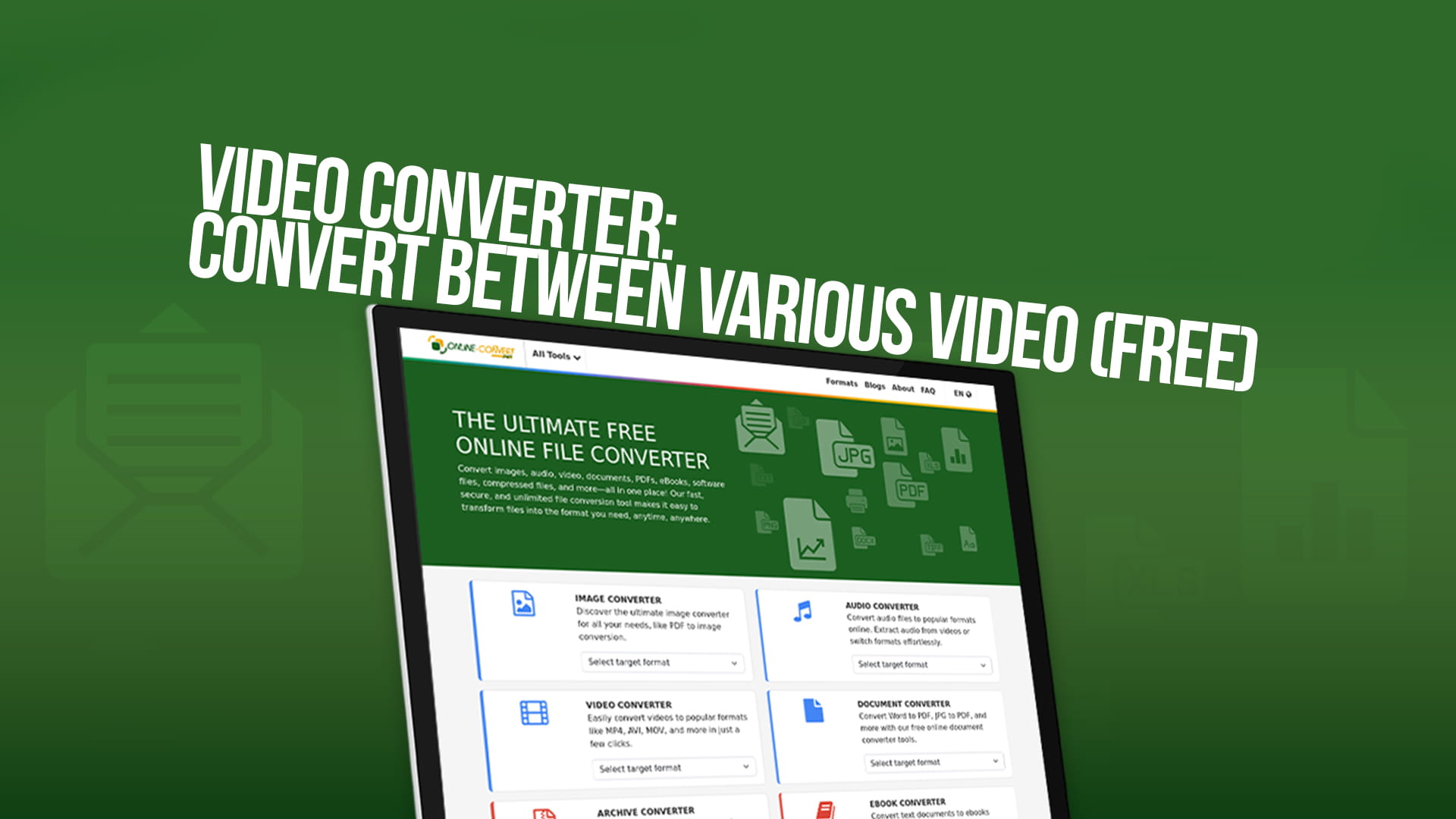
When it comes to free online conversion, Online-Convert stands out as one of the most trusted and comprehensive tools available. It is not just a video converter — it handles images, audio, documents, PDFs, eBooks, software files, compressed files, and much more. But for video conversion specifically, it is genuinely impressive in what it offers.
Here is why so many people turn to Online-Convert when they need to convert a video.
Completely free to use. Online-Convert does not require you to pay anything to convert your video files. You can convert without worrying about hidden fees or trial limitations.
No software installation required. Everything works directly in your web browser. There is nothing to download or install, which means you can use it from any computer, phone, or tablet.
Wide format support. Online-Convert supports a huge range of video formats. Whether you need to convert to MP4, AVI, MKV, MOV, WMV, FLV, WebM, 3GP, or another format, it has you covered.
Customizable conversion settings. You are not limited to a simple format change. Online-Convert lets you adjust things like screen size, video bitrate, frame rate, audio bitrate, and more. This gives you real control over the quality and size of your output file.
Multiple input methods. You can upload files from your computer, paste a URL from the internet, or import from cloud storage. This flexibility makes it easy to convert videos no matter where they are stored.
Fast processing. The conversion engine behind Online-Convert is built for speed. Most video files are processed and ready to download within minutes.
Supports far more than video. While this article focuses on video conversion, Online-Convert also handles image conversion, audio conversion, document conversion, PDF tools, eBook conversion, archive files, and software-related file formats. It truly is a one-stop conversion platform.
To start converting your videos for free, visit online-convert.net.
How to Convert a Video Using Online-Convert
Converting a video with Online-Convert is straightforward. Even if you have never done it before, you can complete the process in just a few simple steps.
Step 1: Choose your target format.
Head over to Online-Convert and navigate to the video conversion section. You will see a list of formats you can convert to. Choose the format you want your video to end up in. For example, if you want to convert an MKV file to MP4, select the MP4 option.
Step 2: Upload your video file.
You can upload your video directly from your computer by clicking the upload button and selecting the file. Alternatively, you can paste in a URL if the video is hosted online, or import directly from cloud storage if that is where your file lives.
Step 3: Adjust settings if needed.
This step is optional but useful. If you want to change the resolution, bitrate, frame rate, or other parameters, you can do so here. For most everyday conversions, the default settings work perfectly well.
Step 4: Start the conversion.
Click the convert button and let Online-Convert do its work. Depending on the size of your video and your internet speed, this usually takes just a minute or two.
Step 5: Download your converted file.
Once the conversion is complete, a download link will appear. Click it to save your newly converted video file to your device. It is that simple.
Tips for Getting the Best Results From Video Conversion
A few practical tips can make your video conversion experience even better.
Know your destination. Before converting, think about where the video will be used. If it is going on YouTube, MP4 with H.264 is ideal. If it is for a website, WebM or MP4 both work well. If it is for a phone, MP4 is almost always the right choice.
Do not over-compress. While reducing file size is useful, going too far can hurt video quality. If you notice blurry, blocky, or pixelated video after conversion, try a higher bitrate setting.
Keep the original file. Before converting, always keep a copy of your original video. If the conversion does not turn out as expected, you will want to go back to the source and try again.
Match your resolution to your content. There is no point in upscaling a 480p video to 1080p. It will not add quality — only file size. Keep the output resolution equal to or lower than the original.
Check audio settings. Sometimes when converting video, the audio can become out of sync or lower in quality. Most good converters, including Online-Convert, handle this well, but it is always worth checking the audio in your final file.
Converting Video for Social Media Platforms
Each social media platform has its own preferred video format and specifications. Here is a quick look at what works best for the most popular platforms.
YouTube strongly recommends MP4 with H.264 video and AAC audio. Resolutions up to 4K are supported, and the ideal aspect ratio for standard videos is 16:9.
Instagram accepts MP4 and MOV files. For feed posts, the recommended aspect ratio is 1:1 (square) or 4:5 (portrait). For Reels and Stories, 9:16 (vertical) works best. File sizes must be under 650MB for most post types.
TikTok prefers MP4 or MOV in a 9:16 vertical format. Videos should be between 3 seconds and 10 minutes long, and the platform works best with files under 287.6MB.
Facebook supports MP4 and MOV, with H.264 encoding recommended. The ideal aspect ratio depends on placement, but 16:9 works across most formats. Files should be under 4GB.
Twitter / X accepts MP4 with H.264, in a range of aspect ratios. The maximum file size is 512MB, and videos can be up to 2 minutes and 20 seconds long.
LinkedIn prefers MP4 files up to 5GB, with H.264 encoding. Video length can be between 3 seconds and 10 minutes for most post types.
If your video is not in the right format or size for any of these platforms, a quick conversion using Online-Convert will have it ready to upload in no time.
Video Conversion for Different Devices
Beyond social media, you might need to convert videos to make them play properly on specific devices. Here are some common device compatibility tips.
iPhone and iPad: Apple devices work best with MP4 and MOV files using H.264 or H.265 encoding. MKV files will not play natively on iOS without a third-party app.
Android phones and tablets: Android is generally more flexible, but MP4 remains the safest choice. Some Android devices also handle MKV and AVI, though this varies by manufacturer.
Smart TVs: Most modern smart TVs support MP4, AVI, and MKV. However, older models may only support MP4 and AVI. If your TV cannot play an MKV file, converting it to MP4 usually solves the problem instantly.
Gaming consoles: PlayStation and Xbox consoles support a range of formats for media playback, but MP4 is almost universally supported. For the broadest compatibility, always convert to MP4 before transferring video to a gaming console.
Mac computers: Mac supports MOV natively (it is Apple's own format), as well as MP4. MKV and AVI can require additional software, so converting to MP4 or MOV is the easiest path on a Mac.
Windows computers: Windows is compatible with MP4, WMV, and AVI out of the box. MKV and MOV may require a media player like VLC or additional codecs.
Why Free Online Converters Are Better Than Desktop Software
You might wonder whether it is better to download a dedicated video conversion program instead of using an online tool. Here are some reasons why free online converters like Online-Convert often come out ahead.
No installation needed. With desktop software, you have to download and install the program before you can use it. Online converters work instantly in your browser with no setup required.
Works on any device. Desktop software is tied to the machine it is installed on. An online converter works on any device with a browser and an internet connection — your laptop, phone, tablet, or a borrowed computer.
Always up to date. Online tools are maintained and updated by their developers continuously. You always get the latest features and format support without having to manually update anything.
No storage used. Video conversion software can take up significant space on your hard drive. Online converters use server-side processing, so nothing is saved to your device except the final converted file.
Safe and clean. There is always a risk that downloaded software can contain unwanted programs or malware. A reputable online converter like Online-Convert eliminates this concern.
The Role of Codecs in Video Conversion
You might sometimes see the word "codec" when dealing with video files, and it is worth understanding what it means.
A codec is the technology used to compress and decompress a video. The format (like MP4 or MKV) is the container, but the codec is what actually determines how the video data is encoded inside that container.
Some common video codecs include H.264, H.265 (HEVC), VP9, AV1, and DivX. Some common audio codecs include AAC, MP3, AC3, and Opus.
When you convert a video, you are often changing both the container format and the codec. For example, converting from MKV (using H.265) to MP4 (using H.264) changes both the container and the codec.
Online-Convert handles codec selection automatically based on your chosen output format, so you generally do not need to worry about this. But if you want fine-grained control, you can often manually select codecs in the advanced settings.
Video Conversion and File Size: What to Expect
One of the main reasons people convert videos is to reduce file size. Here is what generally happens to file size during conversion.
Converting from a large, uncompressed format like AVI to a compressed format like MP4 can dramatically reduce file size — sometimes by 50 to 80 percent — with little to no visible loss in quality.
Converting between two already compressed formats, like MKV to MP4, usually results in a similar file size, since both formats use efficient compression. The file size reduction in this case is minimal, but the compatibility gain is significant.
Increasing resolution or bitrate during conversion will increase file size. Decreasing them will reduce it. The key is finding the right balance for your needs.
Online-Convert makes it easy to experiment with these settings so you can find the ideal combination of quality and file size for your specific situation.
Beyond Video: Everything Else Online-Convert Can Do
While we have focused on video conversion in this guide, it is worth knowing that Online-Convert offers a vast range of conversion services beyond video.
If you need to convert an image — say, from PNG to JPG, or TIFF to WebP — Online-Convert can handle it. If you have an audio file you need in a different format, like WAV to MP3 or FLAC to AAC, the platform supports that too.
Need to convert a document? Online-Convert supports conversions between Word documents, PDFs, text files, and many more. Have an eBook in one format that your reader does not support? Online-Convert can convert between EPUB, MOBI, AZW, and other eBook formats.
It also handles compressed archive files like ZIP, RAR, and 7Z, and even software-related file conversions. All of this, just like the video conversion, is available for free.
This makes Online-Convert not just a video tool, but a genuinely comprehensive conversion platform for almost any file type you might encounter in everyday digital life.
Final Thoughts
Video format problems are a common frustration, but they are also completely solvable. Whether you are trying to watch a video on a new device, upload a clip to social media, reduce the size of a large file, or simply share something with a friend, converting the video to the right format makes everything easier.
The best part is that you do not need any special technical skills, expensive software, or paid subscriptions to do it. A free, reliable tool like Online-Convert puts powerful video conversion capability right in your browser, available whenever you need it, at no cost whatsoever.
With support for all the major video formats — MP4, AVI, MKV, MOV, WMV, FLV, WebM, 3GP, and more — and the flexibility to adjust quality settings to your exact needs, Online-Convert is ready to handle whatever video conversion challenge comes your way.
So the next time a video will not play, refuses to upload, or is simply too large to share, do not stress. Head over to Online-Convert, upload your file, choose your output format, and let the conversion begin. It is free, it is fast, and it works.
