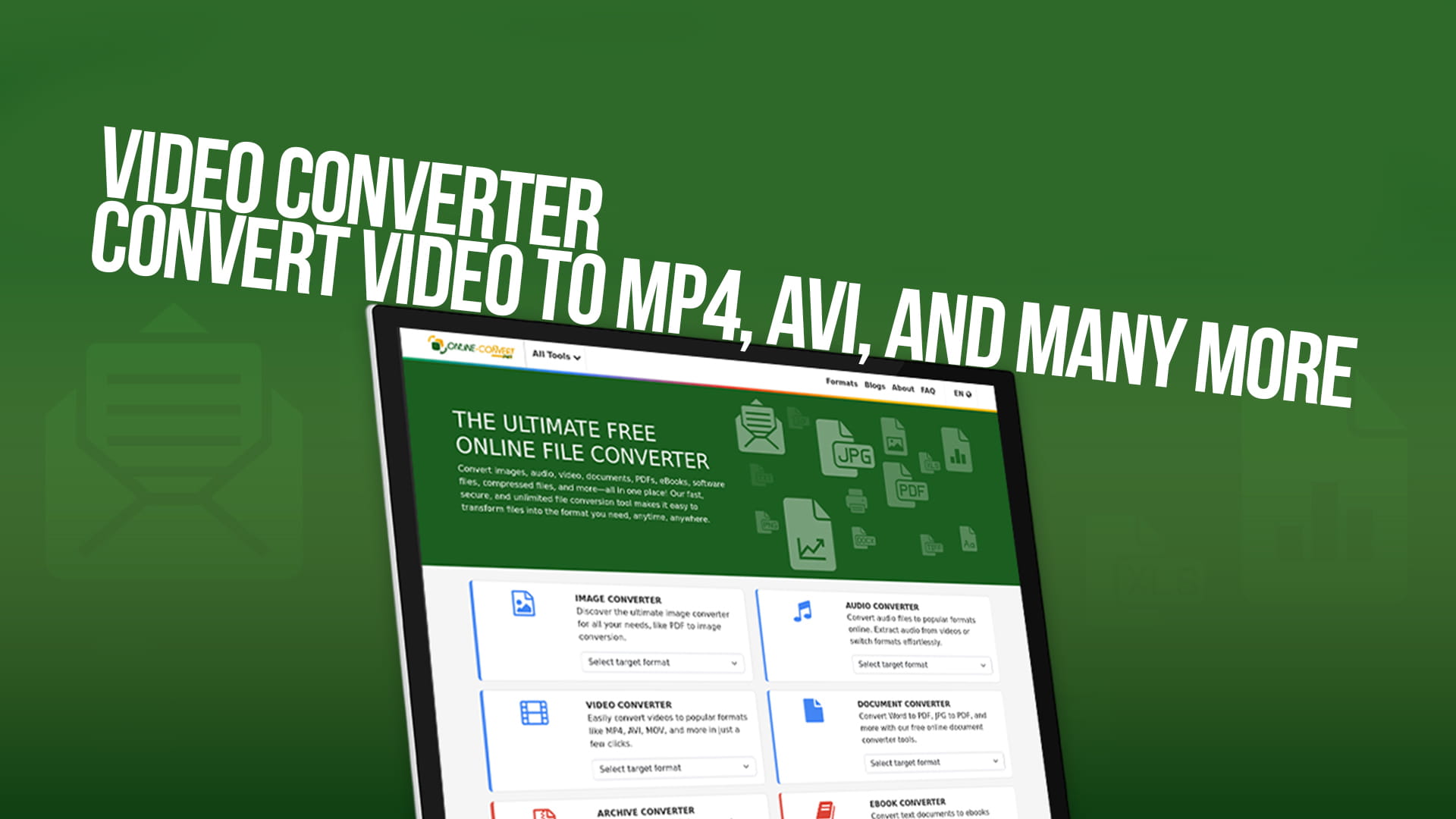
Video Converter | Convert Video to MP4, AVI, and Many More
Video files come in all shapes and sizes. You download a video from the internet, and it won't play on your phone. You record a clip on your camera, and your editing software refuses to open it. You receive a video from a friend, and your media player just shows a blank screen. Sound familiar? These are problems that millions of people face every single day, and the good news is that there is a very simple solution — a video converter.
In this guide, we are going to talk about everything you need to know about video conversion. We will cover what a video converter is, why you might need one, which formats are the most popular, and how you can convert your videos quickly and easily without any technical knowledge. Whether you are a student, a content creator, a working professional, or just someone who wants to watch a video on a different device, this guide is written for you.
What Is a Video Converter?
A video converter is a tool that changes a video file from one format to another. Think of it like this — if a video is a letter written in French, and your media player only understands English, a video converter translates that letter so you can read it. The content of the video stays exactly the same. The picture, the sound, the length — none of that changes. What changes is the container and the encoding, which is the technical "language" the video is written in.
When you convert a video, you are essentially repackaging it so that it works with a specific device, platform, or software. Some formats are designed for small file sizes. Others are built for high quality. Some are made to work on specific devices like iPhones or Android phones. A good video converter lets you choose exactly what you need, and it does all the hard work for you behind the scenes.
Why Do You Need to Convert Videos?
There are many situations in life where you will find that you need to convert a video. Here are some of the most common ones:
Your media player won't open the file. Not all media players support all video formats. If you have a video in a format that your player does not recognize, it simply won't play. Converting it to a more widely supported format like MP4 solves the problem instantly.
You want to watch the video on a different device. Different devices prefer different formats. Smart TVs, gaming consoles, smartphones, and tablets all have their own video format preferences. A video that plays perfectly on your laptop might not play on your television. Converting it to the right format ensures it works wherever you want to watch it.
You are uploading a video online. Platforms like YouTube, Instagram, Facebook, and TikTok all have specific requirements for video formats, file sizes, and resolutions. If your video is in the wrong format or is too large, the upload may fail or the quality may suffer. Converting the video first ensures a smooth upload every time.
You want to reduce the file size. Some video formats are very large. A single video can take up several gigabytes of storage space, which is a lot. By converting it to a more compressed format, you can reduce the file size significantly without losing too much quality. This is especially useful when you are low on storage or need to share the file via email or messaging apps.
You are editing a video. Video editing software can be picky about the formats it accepts. Some professional editing tools prefer specific formats that offer better quality for editing purposes. Converting your raw video footage into the right format before you start editing can save you a lot of frustration.
You received a video in an unusual format. If someone sends you a video in a format you have never heard of, it can be confusing. Rather than trying to find a special media player for that specific format, it is much easier to simply convert the video to a format you already know and use.
The Most Popular Video Formats Explained
There are dozens of video formats out there, but most people only ever work with a handful of them. Here is a simple breakdown of the most common ones:
MP4 (MPEG-4 Part 14) is the most popular video format in the world, and for very good reason. It works on virtually every device and platform you can think of. Whether you are using Windows, Mac, Android, iOS, or a smart TV, MP4 will almost always work. It offers a great balance between file size and video quality, which makes it the go-to choice for most people. If you are ever unsure which format to choose, MP4 is almost always the safest bet.
AVI (Audio Video Interleave) is one of the oldest video formats around, and it was created by Microsoft back in the early 1990s. Despite its age, AVI is still widely used today. It supports very high-quality video, but the trade-off is that the file sizes tend to be quite large. AVI files work well on Windows computers and are often used for storing video that needs to maintain high quality without any compression.
MKV (Matroska Video) is a very flexible and modern video format that has become increasingly popular in recent years. One of the things that makes MKV special is that it can hold multiple audio tracks, subtitle tracks, and chapter information all inside a single file. This makes it a favourite among people who watch movies and TV shows, especially when they want multiple language options or subtitles. MKV files tend to be high quality, although they can be large in size.
MOV (QuickTime Movie) is Apple's native video format and works best on Apple devices and software. If you use a Mac computer, an iPhone, or Final Cut Pro for editing, MOV files will feel very natural. MOV files support excellent video quality and are widely used in professional video production. They can also be played on Windows computers if QuickTime is installed.
WMV (Windows Media Video) is Microsoft's own video format, and it was designed specifically for use on Windows devices and the Windows Media Player. WMV files tend to be well-compressed, which means they are smaller in size than some other formats while still maintaining decent quality. They are commonly used for streaming videos and for sharing video content on Windows-based systems.
FLV (Flash Video) was once the dominant format for online video, particularly in the days when websites used Adobe Flash to play videos. While Flash is now largely obsolete, FLV files are still around, and you may encounter them from time to time, especially with older video content. Converting FLV files to MP4 is one of the most common video conversion tasks.
WebM is a relatively newer format that was developed specifically for use on the web. It is open-source, meaning it is free to use without any licensing fees, and it offers excellent quality at small file sizes. WebM is supported by most modern web browsers, which makes it a good choice for embedding videos on websites.
3GP (3GPP) is a format that was specifically designed for mobile phones, particularly older ones with limited processing power and storage. It results in very small file sizes, which made it perfect for sending videos via MMS messages in the early days of mobile phones. While 3GP is less common today due to the advancement of smartphones, it is still used in some situations.
MPEG (Moving Picture Experts Group) is actually a family of video formats rather than a single one. MPEG-1 and MPEG-2 are older formats that are still used today, particularly for DVDs and broadcast television. MPEG-4, on the other hand, is the basis for modern MP4 files and is the most widely used format in the world right now.
Introducing Online-Convert: Your Free Video Conversion Tool
Now that you understand what video conversion is and why it matters, let us talk about one of the best free tools available for converting your videos. Online-Convert is a free online platform that lets you convert videos quickly and easily, directly from your web browser. There is no software to download, no complicated installation process, and no technical expertise required.
Online-Convert supports a huge range of video formats, including MP4, AVI, MKV, MOV, WMV, FLV, WebM, 3GP, and many more. But video conversion is just the beginning. The platform also handles image conversion, audio conversion, document conversion, PDF conversion, eBook conversion, software file conversion, and compressed file conversion. It truly is a one-stop shop for all your file conversion needs.
What makes Online-Convert stand out from the crowd is its simplicity. The interface is clean and easy to navigate, even for people who are not particularly tech-savvy. You simply choose the format you want to convert to, upload your file, and let the tool do the rest. Within a matter of minutes, your converted video is ready to download.
How to Convert a Video Using Online-Convert
Converting a video with Online-Convert is a straightforward process that anyone can follow. Here is how it works, step by step:
Step 1: Visit the platform. Open your web browser and go to Online-Convert. You will be greeted by a simple, well-organised homepage that clearly shows all the different conversion categories available.
Step 2: Select the video converter. From the menu or the homepage, navigate to the video conversion section. Here you will see a list of all the output formats available for video conversion.
Step 3: Choose your target format. Decide which format you want your video to be converted into. If you want to convert to MP4, click on the MP4 option. If you want AVI, MKV, or any other format, select that one instead. The choice depends on what you need the video for.
Step 4: Upload your video. Once you have selected your target format, you will be taken to the conversion page. Here you can upload your video file. You can upload it directly from your computer, or in some cases, you may be able to provide a link to a video that is hosted online.
Step 5: Adjust optional settings. Online-Convert gives you the option to adjust various settings before converting. These include things like the video resolution, frame rate, bit rate, and audio quality. If you are not sure what these mean, you can simply leave them at the default settings, which are optimised for the best results.
Step 6: Start the conversion. Once you are happy with your settings, click the convert button. The tool will begin processing your video. Depending on the size of the file and the speed of your internet connection, this may take anywhere from a few seconds to a few minutes.
Step 7: Download your converted video. When the conversion is complete, you will be given a link to download your converted video. Simply click the download button and save the file to your device. That is it — your video is now in the new format and ready to use.
Key Features of Online-Convert
Online-Convert comes packed with features that make it one of the most useful and reliable conversion tools available online. Here are some of the highlights:
Completely free to use. Unlike many other online tools that charge you after a certain number of conversions or limit the file size you can upload, Online-Convert is genuinely free. You can convert as many files as you need without worrying about hidden charges or subscription fees.
No software installation required. Because Online-Convert is entirely browser-based, you do not need to download or install anything on your computer. This is great news for people who are cautious about installing software from unknown sources, and it also means the tool works on any device with an internet connection — Windows, Mac, Chromebook, tablet, or smartphone.
Supports a massive range of formats. Whether you are working with common formats like MP4 and AVI or more obscure ones that most tools do not support, Online-Convert has you covered. The platform supports an impressive number of video formats, ensuring that you will almost never encounter a file it cannot handle.
Customisable conversion settings. For those who want more control over their conversions, Online-Convert provides a range of advanced settings. You can tweak the video quality, adjust the resolution, change the frame rate, modify the audio settings, and more. These options are great for professionals or anyone with specific requirements, but they are entirely optional — the default settings work perfectly well for most use cases.
Fast and reliable conversions. Speed is important when you are waiting for a file to convert. Online-Convert uses powerful servers to process conversions quickly, so you are not left waiting around for long periods. Most conversions are completed in just a few minutes.
Multiple file conversion support. Beyond video, Online-Convert handles images, audio files, documents, PDFs, eBooks, software files, and compressed files. This makes it a truly versatile tool that can handle almost any conversion task you throw at it.
User-friendly interface. The platform is designed with the user in mind. The layout is clean, the instructions are clear, and the process is intuitive. Even if you have never converted a file before in your life, you will find it very easy to get started.
Tips for Getting the Best Results from Video Conversion
Even though video conversion is generally a simple process, there are a few tips that can help you get the best possible results every time:
Always start with the highest quality source file you can. Converting a low-quality video will not make it look better — it will just give you a low-quality video in a different format. Whenever possible, work with the original, uncompressed version of your video for the best results.
Choose the right format for your needs. Think about where and how you are going to use the converted video before you choose your output format. If you want to watch it on any device, go with MP4. If you are editing it professionally, you might prefer MOV or AVI. If you are uploading it to a website, WebM or MP4 are both great choices.
Do not over-compress your video. When reducing file size, it can be tempting to compress the video as much as possible. However, too much compression leads to a noticeable drop in quality — the video can look blurry, blocky, or washed out. Find a balance between file size and quality that works for your needs.
Check the output settings before converting. Before you hit the convert button, take a moment to review the settings. Make sure the resolution, frame rate, and audio settings are appropriate for your intended use. This saves you from having to redo the conversion after the fact.
Keep your original file. Always hold onto the original version of your video, even after converting it. If the converted version does not turn out the way you wanted, you can always go back to the original and try again with different settings.
Video Conversion for Content Creators
If you are a content creator — whether you run a YouTube channel, post on Instagram, create TikTok videos, or produce content for any other platform — video conversion is a skill you absolutely need to have in your toolkit.
Different platforms have different technical requirements. YouTube recommends uploading videos in MP4 format with H.264 encoding for the best results. Instagram has specific size and format requirements depending on whether you are uploading a post, a Story, or a Reel. TikTok has its own preferred specifications. Keeping track of all these requirements can be overwhelming, but with a tool like Online-Convert, adapting your videos to meet any platform's requirements is quick and painless.
Beyond platform requirements, content creators often work with footage from multiple sources — cameras, smartphones, screen recorders, drones, and more. Each of these devices may produce video in a different format. Being able to bring all that footage into a single, consistent format before starting your editing process makes the whole workflow much smoother and more efficient.
Video Conversion for Businesses and Professionals
Businesses also have a lot to gain from using a reliable video converter. Companies that produce training videos, marketing content, webinars, or product demos need to make sure their videos are accessible to as many people as possible. A video that plays perfectly on one system but not another is a barrier to communication. By converting videos to universally compatible formats, businesses can ensure that their content reaches everyone it needs to.
Professionals in fields like film production, television, advertising, and corporate communications regularly deal with video files in a wide range of formats. Having a fast, reliable, and free conversion tool at their disposal saves them time and money that would otherwise be spent on expensive dedicated software.
The Future of Video Formats
The world of video formats is constantly evolving. New technologies are being developed all the time to deliver better quality video at smaller file sizes. Formats like HEVC (H.265) and AV1 are becoming increasingly popular because they offer significantly better compression than older formats, meaning you get great quality video in a much smaller file.
As streaming services continue to grow and more people watch video on mobile devices, the demand for efficient, high-quality video formats will only increase. Tools like Online-Convert are always keeping up with these developments, ensuring that they support the latest formats alongside the classic ones that people have been using for years.
Why Free Video Conversion Matters
There are paid video conversion tools out there, and some of them are very good. However, for the vast majority of people, a free tool is more than sufficient. Not everyone is a professional video editor with a budget for expensive software. Students, hobbyists, small business owners, and everyday users all deserve access to powerful tools without having to pay for them.
Online-Convert makes professional-grade video conversion accessible to everyone, completely free of charge. Whether you are converting a single video for personal use or processing dozens of files for a project, you can do it all without spending a single penny. This democratisation of technology is something that benefits everyone, and it is one of the reasons why Online-Convert has become such a popular and trusted tool among its users.
Final Thoughts
Video conversion might sound like a technical, complicated subject, but as you can see from everything we have covered in this guide, it really is not. At its core, it is simply about making sure your video works where you need it to work. Whether you are trying to play a video on a different device, upload it to a social media platform, reduce its file size, or prepare it for editing, converting it to the right format is the solution.
With a free, easy-to-use, and reliable tool like Online-Convert, there is no reason to let incompatible video formats slow you down. The platform supports an enormous range of formats — from the ever-popular MP4 and AVI to MKV, MOV, WMV, WebM, and beyond — and makes the conversion process as simple as a few clicks. And because it handles not just video but also images, audio, documents, PDFs, eBooks, software files, and compressed files, it is the only conversion tool most people will ever need.
So the next time you find yourself stuck with a video that just won't play, remember that help is just a few clicks away. Head over to Online-Convert, choose your format, upload your file, and let the tool take care of the rest. Fast, free, and incredibly easy — that is what video conversion should always feel like.
